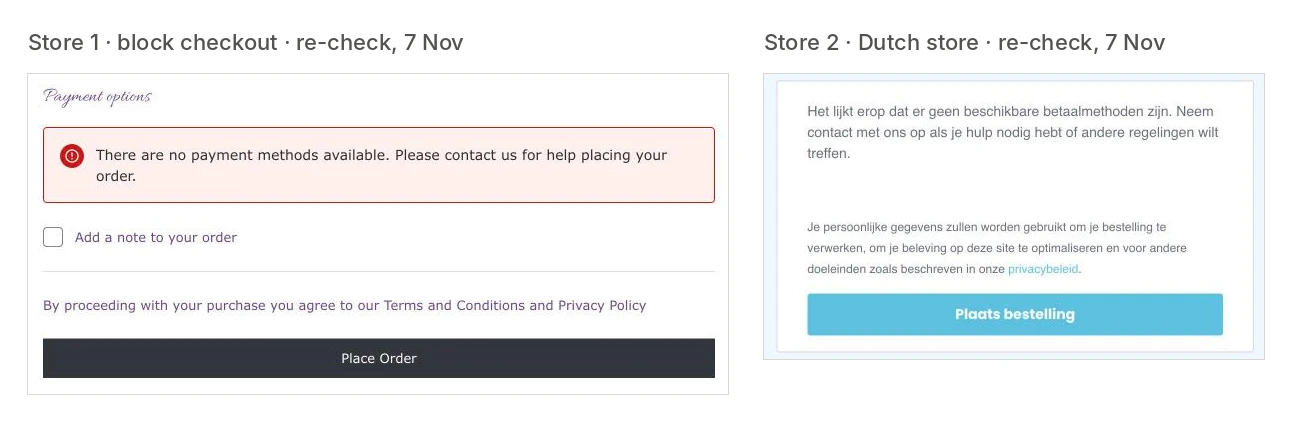
When we went through checkout on 201 live WooCommerce stores in November 2026, twelve could not take an order. Six of those twelve failed in exactly this way, and all six homepages loaded normally.
This guide explains what the message means, the nine usual causes in rough order of likelihood, and how to find out the next time it happens before a customer tells you.
The Exact Message Depends on Your Checkout
WooCommerce has two checkouts, and each words the message differently:
| Checkout type | Message the shopper sees |
|---|---|
| Classic (shortcode) checkout | "Sorry, it seems that there are no available payment methods. Please contact us if you require assistance or wish to make alternate arrangements." Older versions end the first sentence with "for your state" or "for your location". |
| Block checkout (the default on new stores) | "There are no payment methods available. This may be an error on our side. Please contact us if you need any help placing your order." |
| Classic checkout before an address is entered | "Please fill in your details above to see available payment methods." This one is normal and goes away once a country is chosen. |
All of them mean the same thing. WooCommerce asked every installed payment gateway "are you available for this order?" and none said yes. A gateway answers no when it is switched off, when it is not fully set up, or when one of its rules excludes this particular cart, customer or country.
First, Reproduce It the Way a Customer Would
You will often not see the problem as an admin. Before changing anything:
- Open a private browser window, logged out.
- Add the product the customer tried to buy. The product type matters, as causes 5 and 6 show.
- Go to checkout and enter the customer's country and postcode.
- Note whether you are on the block checkout or the classic one, and which message appears.
If the methods show for you but not for the customer, the cause is almost always a rule tied to country, currency, cart contents or amount (causes 3 to 6).
1. No Gateway Is Enabled
Go to WooCommerce → Settings → Payments. Every method has a toggle, and at least one has to be on.
This sounds too simple to happen on a live store, but it does. A gateway is switched off "for a minute" during testing and never switched back. A payment plugin is deactivated while chasing a conflict. A premium gateway's licence lapses and an update removes it. In each case the store keeps its products, cart and checkout page and loses only the last step.
Fix: enable the gateway, then load the checkout as a guest to confirm it shows.
2. The Gateway Is Enabled but Not Fully Set Up
An enabled toggle is not enough. Most gateways hide themselves until they are properly connected, so that shoppers never see a method that can't take money.
Check:
- API keys or account connection. Open the gateway's settings (the Manage button). Missing, revoked or mistyped keys make Stripe, Mollie, PayPal and others disappear from checkout without an error on the page.
- Test mode against live mode. The live keys may be empty while the test keys are filled in, or the reverse. Some stores also restrict a test method to administrators with a role rule, which is why you see it and customers don't.
- Onboarding not finished. WooPayments and PayPal Payments stay hidden until the account is verified. Look for a notice at the top of the settings page.
- HTTPS. Card gateways in live mode expect the checkout to be served over HTTPS with a valid certificate.
Fix: complete the connection, save, and check the gateway's log under WooCommerce → Status → Logs if it still doesn't appear.
3. The Store Currency or the Customer's Country Isn't Supported
Gateways only work for certain currencies and countries. iDEAL needs euros. Some buy-now-pay-later methods only work in a short list of countries. Many gateways also have their own "enable for these countries" setting.
This cause often arrives with a new plugin. A multi-currency or geolocation plugin switches the visitor's currency, and the only enabled gateway doesn't support it. The store owner, browsing from the home country, never sees it.
Check: the gateway's supported currencies in its documentation, its country setting, and WooCommerce → Settings → General → Selling location(s). Then test checkout with a billing address in the country the customer used.
Fix: add a gateway that covers the missing currency or country, or keep a broadly supported method, such as card payments, enabled everywhere.
4. A Rule or Snippet Hides Every Method
Conditional payment plugins hide methods by product, category, shipping method, user role or cart total. Custom code can do the same through the woocommerce_available_payment_gateways filter. Each rule is reasonable on its own. Together they can leave some carts with nothing.
A common pattern: "hide Cash on delivery for orders over 500" and "hide card payments for wholesale customers" both apply, and a wholesale customer with a large order gets no method at all.
Check: list every rule in your conditional payments plugin and search the theme's functions.php and any snippets plugin for available_payment_gateways. On staging, switch the rules off and see whether the methods come back.
Fix: add a fallback method that no rule can remove, or reorder the rules so one method always survives.
5. Gateway Settings That Depend on the Cart
Several built-in settings quietly exclude specific carts:
- Cash on delivery has "Enable for shipping methods" and "Accept for virtual orders". If the box for virtual orders is not ticked, a cart containing only a course, a booking or a download gets no Cash on delivery. If that was the only method, the checkout shows none.
- Minimum and maximum amounts. Pay-later methods have order limits, and a cart outside the range removes them.
- Shipping method restrictions. A method limited to "Local pickup" vanishes for delivered orders.
In the study, several of the six stores sold exactly these products: an online course, an enrolment, a made-to-measure item.
Fix: test one product of each type you sell (physical, virtual, variable, subscription) as a guest, and make sure each one reaches at least one payment method.
6. Subscriptions and Other Special Product Types
With WooCommerce Subscriptions, a cart that contains a subscription only shows gateways that support automatic recurring payments, unless manual renewals are allowed. A store whose only gateway is bank transfer or a basic card plugin will show no methods for a subscription product and work normally for everything else.
The same applies to pre-orders, deposits and some booking plugins: they filter gateways by the features each one declares.
Fix: enable a gateway that supports the feature, or allow manual renewals under WooCommerce → Settings → Subscriptions.
7. The Gateway Doesn't Support the Block Checkout
New WooCommerce stores use the Cart and Checkout blocks by default, and older stores can be moved to them. A payment gateway has to add support for the block checkout separately. One that hasn't will be enabled, configured, working on the classic checkout, and missing from the block one.
Check: edit the Checkout page. If it contains the Checkout block, select it and look at the sidebar, where WooCommerce lists extensions that are not compatible. Also check the gateway's changelog for "Checkout block support".
Fix: update the gateway plugin. If no compatible version exists, switch the page back to the classic checkout: select the Checkout block and choose the option to switch to the classic shortcode, or replace the block with [woocommerce_checkout]. Test before and after, because other checkout extensions may depend on one or the other.
8. A Script Error Stops the Method From Loading
On the block checkout, each gateway registers itself with JavaScript and then decides whether it can take this payment. If its script fails to load or throws an error, the method is removed. Logged-in administrators see an error box in its place. Shoppers see only that the method is missing, or the "no payment methods" message if it was the only one.
Typical triggers are script optimisation ("delay JavaScript", combine, defer), a Content Security Policy that blocks the gateway's domain, and a consent tool that blocks third-party scripts until the visitor accepts.
Check: open the checkout as a guest with the browser console open and look for red errors that name the gateway.
Fix: exclude the gateway's scripts and the checkout page from optimisation, allow its domains, and treat payment scripts as necessary in the consent tool. The Stripe-specific version of this is covered in WooCommerce Stripe not working.
9. Something Changed: an Update, a Migration or an Expired Key
If the checkout worked last week, ask what changed. The usual answers:
- a WooCommerce or gateway update (see why plugin updates break checkout);
- a migration or staging push that copied test keys over live ones;
- API keys rotated in the payment provider's dashboard and never updated in WordPress;
- a gateway account restricted by the provider.
Fix: check the provider's dashboard for account notices, compare the keys, and roll the plugin back on staging to confirm before rolling back on the live store.
A Quick Diagnostic Order
- Reproduce as a guest with the customer's product and country.
- WooCommerce → Settings → Payments: is anything enabled?
- Open each enabled gateway: connected, live mode, no warnings?
- Check currency, country and amount limits against the failing order.
- Switch off conditional payment rules and snippets on staging.
- Check whether the page uses the Checkout block and whether the gateway supports it.
- Read the browser console on the checkout page.
- Look at WooCommerce → Status → Logs for the gateway's log.
If a method is shown but the payment then fails, that is a different problem. Continue with WooCommerce payment gateway issues.
How to Find Out Before Customers Do
No uptime check catches this, because the checkout page returns a normal response. Nobody inside the business sees it either, unless they place an order as a guest. In the study, every one of the six stores was still failing when re-checked a day later.
What does catch it is a check that behaves like a shopper:
A real-browser journey adds a product to the cart, opens the checkout, and expects a payment method to be on the page. If the payment section shows the "no payment methods" message instead, the journey fails at that step and sends a screenshot of what the shopper saw. Run it every 15 minutes and again after each plugin update. That is what WooCommerce checkout monitoring does, and it stops before any payment is made, so no test orders are created.
If you sell more than one product type, give each type its own journey, because causes 5 and 6 only affect some carts. To test by hand first, follow how to test WooCommerce checkout.
Summary
"There are no available payment methods" means no gateway said yes to this order. Check, in order: that a gateway is enabled, that it is connected in live mode, that it supports the customer's currency and country, that no rule or cart-dependent setting removes it, and that it works with the checkout type your store uses. Always test as a guest with the product the customer tried to buy. Then put a scheduled checkout journey on the store, because this failure leaves the homepage, the cart and the Place order button looking exactly as they should.