This guide lists what the problem looks like, the usual causes in rough order of likelihood, and how to stop it from happening unnoticed again.
First, Pin Down the Symptom
| What you see | Most likely cause |
|---|---|
| Click does nothing at all | JavaScript error or script optimisation |
| Button spins forever | Failing AJAX request (firewall, PHP error, cache) |
| "Product added" message, but cart is empty | Caching or session/cookie problem |
| Button missing on some products | Stock, price, product type, or a CSS change |
| Works on shop pages, not product pages (or vice versa) | Theme template or AJAX setting difference |
| Works when logged in, fails for guests | Page caching or security rules for anonymous visitors |
Test in a private browser window as a guest — that's what customers see, and many caching problems don't appear when you're logged in.
1. A JavaScript Error Stops the Button
WooCommerce's add-to-cart behaviour depends on JavaScript. If another script throws an error first, the click handler never runs.
Check: open the browser console (right-click → Inspect → Console) on the product page and click the button. Red errors usually name the plugin or theme file responsible.
Fix: update or disable the plugin named in the error, then re-test. If an update caused it, roll back to the previous version while the plugin author fixes it. This is the classic post-update break covered in monitoring WordPress after plugin updates.
2. Performance Plugin Settings Break Scripts
Minify, combine, defer, and "delay JavaScript until interaction" options often break add-to-cart and cart fragments.
Fix: exclude WooCommerce scripts (and jQuery, if your theme still relies on it) from optimisation, clear all caches, and test as a guest again.
3. Cart and Checkout Pages Are Cached
If the cart page, checkout, or requests carrying WooCommerce session cookies are served from cache, shoppers can see an empty or someone else's stale cart.
Fix: exclude cart, checkout, and my-account from page caching and from CDN caching, and make sure requests with WooCommerce cart cookies bypass the cache. Most WooCommerce-aware caching plugins do this by default — custom server or CDN rules often don't.
4. The AJAX Request Is Blocked or Failing
On shop and category pages, add to cart usually sends an AJAX request (?wc-ajax=add_to_cart); block-based product and cart pages use the Store API under /wp-json/wc/store/.
Check: in the browser's Network tab, click the button and look at the request. A 403 points to a security plugin, firewall, or Cloudflare rule. A 500 points to a PHP error — check WooCommerce → Status → Logs and your server error log.
Fix: allow those endpoints in the firewall or security plugin, or fix the PHP error. If you monitor the Store API directly, this kind of failure shows up before shoppers report it — see WooCommerce Store API monitoring.
5. AJAX Add to Cart Settings
Under WooCommerce → Settings → Products → General there are two add-to-cart behaviour options: Redirect to cart page after successful addition and Enable AJAX add to cart buttons on archives.
Check: toggling these changes how the button behaves on shop pages. If disabling AJAX makes the button work, the AJAX path is broken (see causes 1–4) — fix that rather than leaving AJAX off.
6. Variable Products Without a Selected Variation
On variable products the button stays disabled until a customer picks the options, and it won't add anything if the chosen combination has no price or no stock.
Check: every variation has a price, stock status, and is enabled. A variation without a price makes that combination unpurchasable.
7. Stock, Price, or Visibility Settings
The button disappears or refuses to add when the product is out of stock (with backorders off), has no price, or is set to a catalogue-only visibility by a plugin.
Watch for the opposite too: a product accidentally priced at 0 with a working button is also a failure — it just costs money instead of sales.
8. Theme or Template Overrides
Themes that override WooCommerce templates can fall behind WooCommerce updates. WooCommerce → Status lists outdated template overrides at the bottom of the System Status report.
Fix: update the theme, or test with a default theme like Storefront on staging to confirm the theme is the cause.
9. Sessions and Cookies
If the cart session cookie isn't set or kept — because of a cookie consent tool blocking it, a domain mismatch between www and non-www, or mixed HTTP/HTTPS — the cart can appear empty after adding.
Fix: serve the store on one canonical HTTPS domain, and make sure consent tools treat WooCommerce cart cookies as strictly necessary.
A Fast Diagnostic Order
- Reproduce as a guest in a private window, on desktop and mobile.
- Check the console for JavaScript errors.
- Check the Network tab for the add-to-cart request status.
- Clear caches and disable script optimisation temporarily.
- Check what updated in the last 48 hours.
- On staging, switch to a default theme and disable plugins except WooCommerce, then re-enable one at a time.
If the cart works but checkout doesn't, continue with the WooCommerce checkout not working checklist.
Catch the Next Broken Button Before Customers Do
Add-to-cart failures rarely take a site down, so uptime monitors miss them. Two kinds of monitoring catch them:
A real-browser journey opens a product page, clicks Add to cart, and expects the "has been added to your cart" message and a cart count above zero — then continues to checkout. When the button stops working, the journey fails at that step with a screenshot. Run it every 5–15 minutes and right after plugin updates. That's what WooCommerce monitoring means in practice.
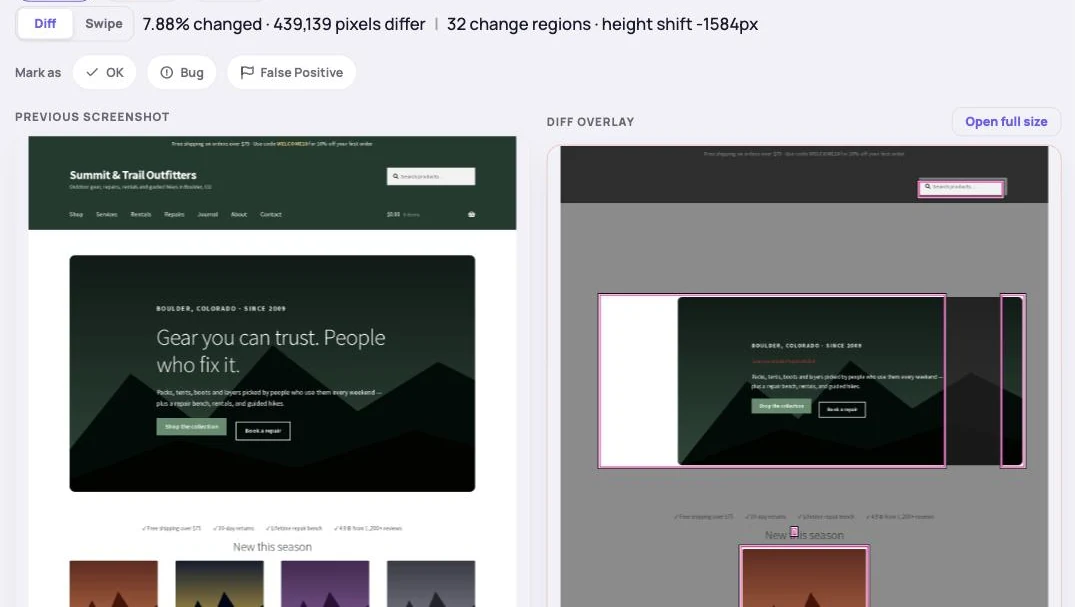
Visual change detection on product and shop pages catches the button that silently disappears after a CSS or template change.
Summary
A WooCommerce Add to cart button usually fails for one of a few reasons: a JavaScript error, over-aggressive script optimisation, cached cart pages, a blocked AJAX or Store API request, or product data such as variations, stock, and price. Reproduce it as a guest, read the console and Network tab, check what changed recently, and isolate on staging. Then put a real-browser add-to-cart journey on the store so the next break is an alert, not a lost week of sales.