What "Testing Checkout" Has to Prove
A checkout test is only useful if it proves the things that actually break:
- The product can be added to the cart and the cart keeps it between pages.
- Checkout loads with the right fields, shipping options, taxes, and payment methods.
- Coupons and discounts apply correctly.
- The payment step renders and accepts a payment.
- The order is created with the right status — not stuck in Pending payment.
- The confirmation page and emails reach the customer.
A test that only loads the checkout page covers two of those six. The rest only fail after a click.
Option 1: Payment Gateway Test Mode (Best for Staging)
Most gateways have a test or sandbox mode that processes fake payments end to end.
Stripe for WooCommerce. Go to WooCommerce → Settings → Payments → Stripe → Settings and check Enable test mode. Test mode uses its own connection to Stripe, separate from live mode, so connect it before testing. Then pay with Stripe's test cards:
| Test card | What it simulates |
|---|---|
| 4242 4242 4242 4242 | Successful Visa payment |
| 4000 0027 6000 3184 | Payment that requires 3D Secure authentication |
| 4000 0000 0000 0002 | Generic card decline |
Use any future expiry date and any 3-digit CVC. Always test a decline and a 3D Secure card too — those paths break more often than the happy path.
WooPayments. WooPayments supports test accounts and a test mode; you can see whether test mode is active under Payments → Overview or WooCommerce → Settings → Payments. WooPayments can also switch a live store into test mode, but that affects every shopper while it's on, so do it on staging or in a quiet window.
PayPal. Use PayPal's sandbox with sandbox buyer accounts, not your real PayPal login.
The limitation: test mode on staging proves your configuration, not your production store. Caching, CDN rules, a firewall, or a plugin that only runs on production can still break the live checkout.
Option 2: Test on Production Without Charging Anyone
To verify the store customers actually use, you need a test that runs on production without taking real money.
- An offline payment method restricted to testers. "Cash on delivery" or "Check payments" complete an order without a card. Restrict it so real customers never see it — for example with a plugin that shows payment methods only to specific user roles or with a coupon.
- A 100% coupon limited to your test email. The order completes at zero total. It exercises cart, coupon logic, checkout fields, and order creation, but skips the card form, so pair it with occasional gateway tests.
- A low-price hidden test product, paid with a real card and refunded. The most realistic test and the only one that exercises the live payment gateway, but it costs processing fees and needs refunding.
Whatever you choose, create a dedicated test customer and use a recognisable name such as "NorthDuty Monitor" so test orders are easy to find.
Keep Test Orders Out of Your Reports
Test orders that sit in WooCommerce inflate revenue, reduce stock, and trigger fulfilment. Decide up front how you handle them:
- Use a consistent test email and name so they can be filtered.
- Cancel or trash them right after the test, and restore stock if needed.
- Exclude the test customer in analytics tools where you can.
- Make sure fulfilment integrations (warehouse, ERP, shipping labels) ignore them — this is the one people forget.
Manual Checklist for a Full Checkout Test
Run this after major updates, before campaigns, and before Black Friday:
- Add a simple product and a variable product to the cart
- Change quantity and remove an item — totals update
- Apply a valid coupon, then an invalid one
- Check out as a guest and as a logged-in customer
- Try each shipping zone you sell to
- Pay with each enabled method, including one decline and one 3D Secure card
- Confirm the order status in WooCommerce and the customer email
- Repeat the core path on a phone
Option 3: Automate It So It Runs Every Day
Manual tests catch problems on the day you run them. Checkouts break on other days — after an automatic plugin update, a hosting change, or a payment provider change.
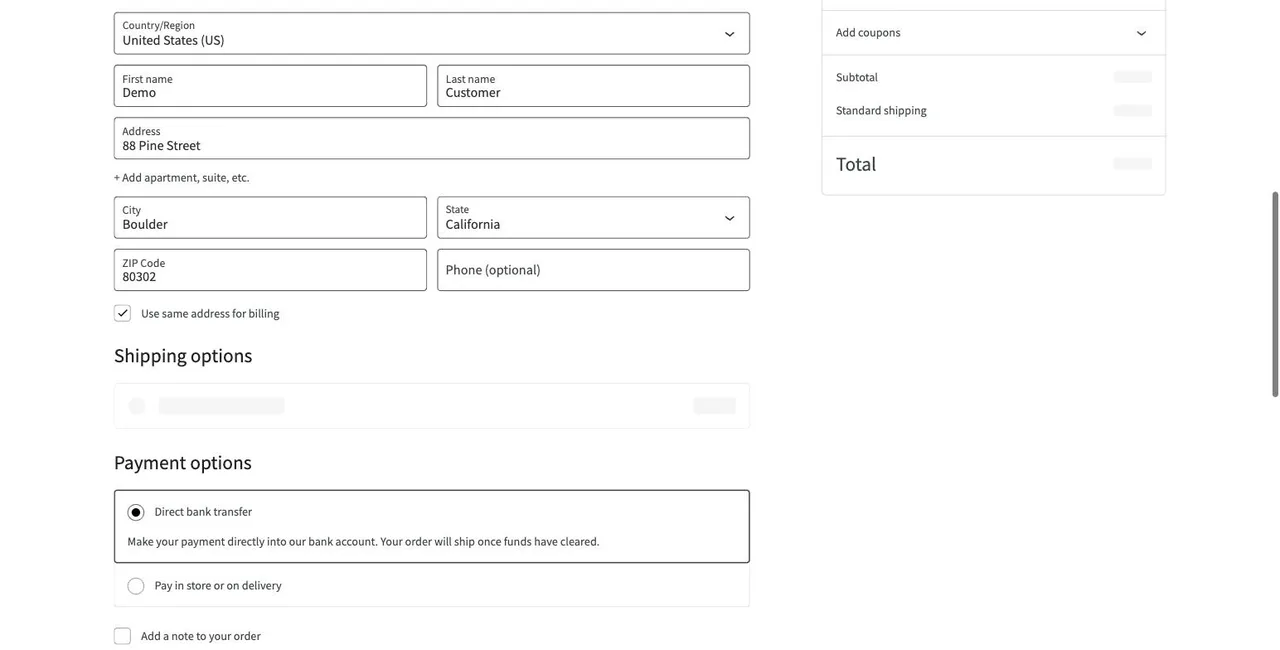
Automating the same path turns it into monitoring: a real browser adds the product, applies the coupon, fills the checkout form, pays with the test method, and expects the order-received page. If a step fails, you get the step and a screenshot.
You can script this yourself with Playwright or use a monitoring tool. The trade-offs are covered in the best WooCommerce monitoring tools and what user journey monitoring is. Two tips either way:
- Assert the outcome, such as the text "Thank you. Your order has been received.", not just that the checkout URL loaded.
- Re-run after updates. Plugin, theme, and WooCommerce updates are the most common cause of checkout breakage, so the test should run right after them as well as on a schedule.
Common Problems When Testing Checkout
Test mode shows no payment methods. Test mode often needs its own keys or connection. Reconnect the gateway in test mode.
3D Secure popup never appears. A popup blocker, a JavaScript error from another plugin, or script optimisation settings can block the authentication window.
The order goes through but stays Pending payment. The gateway's confirmation isn't reaching the store — usually a webhook problem. See WooCommerce payment gateway failures.
The cart empties between pages. Cart, checkout, and my-account pages are being cached. Exclude them from page caching.
Automated tests get blocked. Security plugins and Cloudflare challenge modes can block test browsers. Allow-list the monitoring tool's IP addresses instead of disabling protection.
Summary
Use gateway test mode with test cards on staging to prove configuration, a tester-only payment method or 100% coupon on production to prove the live store, and an occasional real low-value order to prove the live gateway. Keep test orders easy to find and out of fulfilment. Then automate the path so a real browser runs checkout every day and after every update — that's the difference between testing checkout once and knowing it works. If you're seeing failures right now, start with the WooCommerce checkout not working checklist.