A broken WooCommerce checkout doesn't take your site down. It just stops customers from completing their orders.
The WooCommerce Failure Landscape
The checkout flow is one of the most JavaScript-dependent parts of any WooCommerce store. Payment gateways inject their own scripts. Theme builders add checkout customizations. Plugins modify form behavior, add fields, or hook into the order submission process. All of these moving parts work together — until one of them doesn't.
The most common WooCommerce failure points:
Cart failures. The "Add to Cart" button fires an AJAX request to update the cart in real time. A JavaScript conflict, a plugin update, or a PHP error can cause this request to fail silently. The button appears to work — or does nothing — while the cart stays empty. If it's happening now, see WooCommerce Add to cart not working.
Checkout page loading issues. WooCommerce's checkout page loads payment gateway iframes, address validation scripts, and shipping calculators. If any of these fail to load — due to a script error, a blocked resource, or a rate limit — the checkout can appear broken or incomplete.
Payment gateway errors. Payment scripts (Stripe, PayPal, Square, etc.) are loaded from third-party CDNs. If the gateway script fails to load, the payment form won't appear. The customer sees an empty checkout. No error is thrown at the server level. For the full diagnostic, see WooCommerce payment gateway failures.
Order confirmation failures. Even when payment succeeds, a broken "thank you" page — caused by a redirect misconfiguration or a plugin conflict — can leave customers unsure whether their order went through. This leads to duplicate orders, chargebacks, and support requests.
Session and cart persistence issues. WooCommerce relies on PHP sessions and cookies to maintain cart state. Misconfigured caching, CDN settings, or cookie policies can cause carts to empty between pages, preventing checkout from being reached at all.
Why Uptime Monitoring Misses All of This
An uptime monitor checks whether your server responds to a request with a valid HTTP status code. It doesn't load JavaScript. It doesn't fill out forms. It doesn't interact with payment gateway iframes.
When your checkout is broken in any of the ways described above, the server still returns a 200 OK. The uptime monitor sees a healthy site. The alert never fires.
This is the core limitation of server-level monitoring: it measures server availability, not user experience. For a content site, that gap is manageable. For an ecommerce store where every page in the purchase flow involves complex client-side behavior, it's a serious blind spot.
What WooCommerce Monitoring Should Actually Cover
Effective WooCommerce monitoring needs to verify the purchase flow, not just the server:
The product page. Does the product load? Is the "Add to Cart" button present and functional?
The cart. After adding a product, does the cart update? Can the customer navigate to checkout?
The checkout page. Does the checkout load completely — including address fields, shipping options, and payment form?
Payment submission. (This is harder to automate end-to-end without a real payment, but the presence and functionality of the payment form can be verified.)
The confirmation page. Does a completed order produce a confirmation page with expected content?
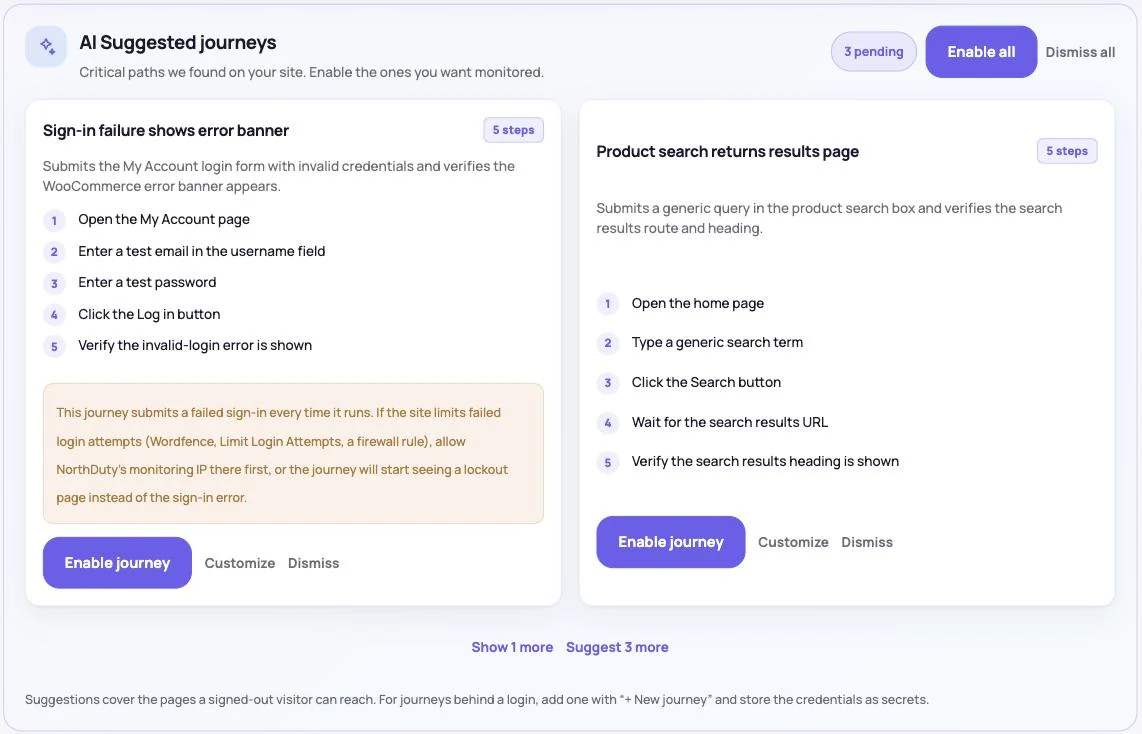
User journey monitoring addresses this by stepping through these actions in sequence and alerting you if any step fails to reach the expected outcome. NorthDuty lets you define these flows in plain English — you describe what the journey should look like, and it monitors whether it continues to work on a regular schedule.
Rendered health checks add another layer: by loading your product pages, cart, and checkout in a real browser on a schedule, they catch the JavaScript errors, broken resources, and failed API calls that quietly break the flow — a script that stops the payment form loading, a blocked request that leaves shipping options empty.
Practical Monitoring Setup for WooCommerce
Start monitoring when the store is healthy. Before you rely on alerts, run your journeys once and confirm every step passes on a fully functional store. If you build a journey around a known issue, the monitor will treat that issue as "normal."
Monitor your most important product journey. If you sell multiple products, pick your best-selling product or your most critical offer and build a journey around it. This is where a checkout failure costs the most.
Watch post-update changes carefully. Plugin updates, theme updates, and WooCommerce core updates are the most common trigger for checkout regressions. Run your journey checks immediately after any update.
Don't rely on customer reports. Customers who hit a broken checkout rarely email to tell you. They leave. The conversion rate drops, the ad spend keeps running, and by the time you notice the revenue dip, you've lost days.
For more on how plugin updates cause these kinds of failures, see How WordPress Plugin Updates Break Checkout — and How to Catch Them First. For a broader look at why login and other authenticated flows need similar attention, see How to Monitor Your Login Flow (And Why Uptime Checks Miss It). To set up the checkout itself as a monitored journey, see how to monitor an ecommerce checkout flow. Payment gateways and shipping calculators are external dependencies, so API monitoring for the endpoints your store depends on matters too, and what uptime monitoring can't tell you explains why a green uptime check is not enough.
The Business Case for WooCommerce Monitoring
The math is straightforward. If your store generates $5,000/week in revenue and a checkout failure runs undetected for 48 hours, you've lost — conservatively — a significant share of that weekend's revenue. The cost of monitoring is negligible by comparison.
More importantly, fast detection limits the damage window. A failure caught in ten minutes costs a fraction of what the same failure costs after two days. Monitoring doesn't prevent failures — it shrinks them.
Summary
WooCommerce stores break in ways that uptime monitors can't see. Cart failures, payment gateway issues, and checkout regressions all happen at the browser level, after the server has already responded successfully. The only way to know your checkout works is to test it — continuously, automatically, and in a way that replicates the real customer experience from product page to order confirmation.