In our checkout study of 201 live WooCommerce stores, one store's checkout was a single promotional heading and empty space. It was the same a day later, from the cart page, the side cart and a phone-width window.
"Blank" covers several different failures, and each has a different fix. Start by working out which one you have.
First, Work Out Which Kind of Blank It Is
| What you see | What it usually means |
|---|---|
| Header and footer load, but the content area is empty or shows unrelated text | The page has lost its checkout block or shortcode (cause 1) |
| A completely white page, or "There has been a critical error on this website" | A PHP fatal error (cause 2) |
| Grey placeholder bars or a spinner that never finishes | The block checkout's JavaScript failed or was delayed (causes 3 and 4) |
| The page stops partway, with no footer | PHP ran out of memory or time (cause 5) |
| Only the line "You must be logged in to checkout" | Guest checkout is off (cause 7) |
| The cart page opens instead | The cart is empty or the session was lost, which is a different problem |
Test in a private window as a guest, with a product in the cart. An administrator often sees a working page where customers don't, because logged-in users skip most caching and optimisation.
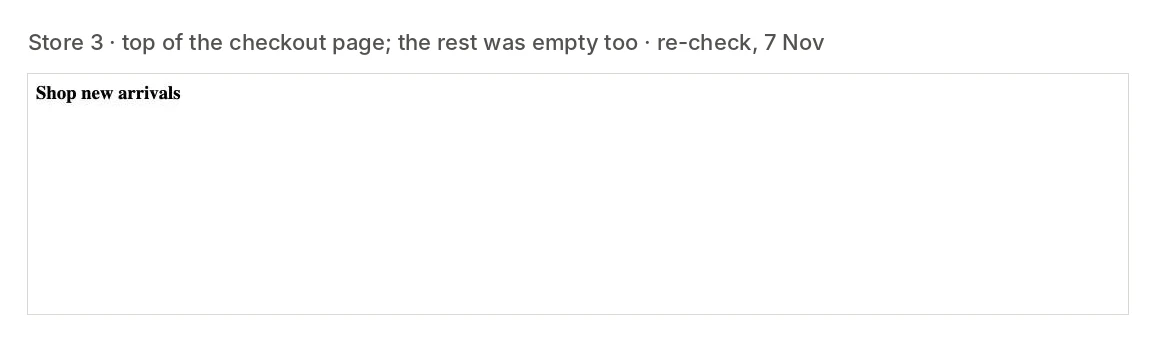
1. The Page Has Lost Its Checkout Block or Shortcode
The checkout is an ordinary WordPress page that contains either the Checkout block or the [woocommerce_checkout] shortcode. Remove that and the page still exists, still returns a normal response, and shows whatever is left: a title, a stray heading, or nothing.
It happens when someone edits the page in a page builder and saves a new layout over it, when a template is applied to the page, or when a redesign replaces the page with a placeholder.
Check: WooCommerce → Status, section "WooCommerce pages". It flags a checkout page that doesn't contain the required block or shortcode. Then open the page in the editor and look.
Fix: add the Checkout block or the shortcode back and update the page. If a page builder controls the page, check that its checkout widget is on the template and that the template is assigned to the checkout page.
2. A PHP Fatal Error
If PHP crashes while building the page, the visitor gets a white screen or WordPress's "critical error" message. On checkout the crash usually comes from a payment, shipping or checkout-field plugin, because those only run their code on this page. That is why the rest of the store keeps working.
Check:
- WooCommerce → Status → Logs and open the most recent fatal error log. It names the file and plugin.
- The site admin's inbox. WordPress emails a recovery-mode link when it catches a fatal error.
- The server's PHP error log, if neither of the above shows anything.
Fix: update the plugin named in the log, or deactivate it and check the checkout again. If the error started after an update, roll that plugin back while its author fixes it. A PHP version change on the server causes the same symptom with older plugins.
3. A JavaScript Error on the Block Checkout
The classic checkout is built on the server, so a script problem leaves a visible form that misbehaves. The block checkout is built in the browser. If its scripts fail, the shopper sees placeholder bars that never turn into a form, or an empty space.
Check: open the checkout as a guest with the browser console open. Red errors usually name the file. In the Network tab, look for script files that return 404 or 403.
Common triggers:
- an extension that is not compatible with the block checkout;
- script files that return 404 after an update, because a cached copy of the page still asks for the old file names;
- a Content Security Policy or firewall rule blocking a script the checkout needs.
Fix: clear every cache layer after updates, update or remove the incompatible extension, and allow the blocked scripts. To confirm the block checkout is the cause, switch the page to the classic checkout on staging and compare.
4. Script Optimisation Delays or Breaks the Checkout
"Delay JavaScript until user interaction", defer, combine and minify settings are frequent causes of a checkout that stays on placeholders. With delay turned on, the checkout may render only after the shopper moves the mouse or taps, and on some setups never.
Check: turn the optimisation features off for a minute and reload the checkout as a guest. If the form appears, turn them back on one at a time.
Fix: exclude the cart and checkout pages from JavaScript optimisation altogether. Most performance plugins have a setting for this, and several exclude WooCommerce pages by default until someone changes it.
5. Memory Limit or Timeout
A page that stops partway down, often with no footer, usually means PHP ran out of memory or time. Checkout is the heaviest page on a store: it loads shipping rates, tax calculations and every payment gateway, and some of those call outside services.
Check: WooCommerce → Status shows the WordPress memory limit, and marks it in red when it is too low. The PHP error log will contain "Allowed memory size exhausted" or "Maximum execution time exceeded".
Fix: raise the memory limit (256 MB is a sensible minimum for WooCommerce), and find the slow part. A live shipping-rate plugin waiting for a carrier that doesn't answer can hold up the whole page.
6. Theme or Page-Builder Templates
Themes can override WooCommerce's checkout templates, and page builders can replace the checkout layout. Both fall behind WooCommerce updates. The result ranges from a missing payment section to an empty page.
Check: WooCommerce → Status, at the bottom of the system report, lists template overrides and marks outdated ones. On staging, switch to the Storefront theme. If the checkout returns, the theme or builder template is the cause.
Fix: update the theme or builder, or remove the outdated override so WooCommerce's own template is used.
7. Guest Checkout Is Off and the Login Form Is Hidden
If WooCommerce → Settings → Accounts & Privacy doesn't allow guest checkout, and the option to log in during checkout is also off, a logged-out shopper sees one line: "You must be logged in to checkout." On a theme that hides notices, they see nothing.
Fix: allow guest checkout, or enable login and account creation on the checkout page so the shopper has a way forward.
8. A Cache Is Serving a Broken Copy
A cache that stored the checkout while it was broken, or stored it for one visitor and serves it to all, can keep a blank page alive after the cause is fixed. The checkout must never be cached.
Fix: exclude cart, checkout and my-account from the caching plugin, the host's cache and the CDN, then purge all three. If the site uses Cloudflare or a similar service, check for a "cache everything" rule that includes the checkout.
A Quick Diagnostic Order
- Open the checkout as a guest with a product in the cart. Decide which kind of blank it is.
- WooCommerce → Status: are the WooCommerce pages correct, is memory sufficient, are templates current?
- WooCommerce → Status → Logs: is there a recent fatal error?
- Browser console and Network tab: script errors, or files returning 404 or 403?
- Purge caches and switch off script optimisation briefly.
- Ask what changed in the last 48 hours: an update, a page edit, a cache or security setting.
- On staging, switch to Storefront and disable plugins except WooCommerce, then re-enable them one at a time.
If the page loads but has no way to pay, see "There are no available payment methods". If shoppers can't get from the cart to the checkout at all, see Proceed to checkout not working. For other checkout symptoms, use the checkout not working checklist. The general version of this problem, on any site, is covered in what causes blank pages on websites.
Why Nobody Notices, and What Does
A blank checkout returns the same "OK" response as a working one, so uptime monitoring stays green. Opening the checkout address directly proves little either, because without a product in the cart WooCommerce redirects to the cart page. The people who see the blank page are shoppers, and most of them leave without writing to you.
A real-browser journey does what they do. It adds a product to the cart, opens the checkout, and expects the billing form and the Place order button to be on the page. If the page is empty, stuck on placeholders, or showing an error, the journey fails at that step and sends a screenshot. Run it every 15 minutes and after each plugin or theme update, which is when most of the causes above appear. That is what WooCommerce checkout monitoring is for, and it stops before payment, so it places no orders. JavaScript error monitoring adds the script errors behind causes 3 and 4.
Summary
A blank WooCommerce checkout is usually one of four things: the page lost its checkout block or shortcode, PHP crashed, the block checkout's scripts failed or were delayed, or a cache is serving a broken copy. Decide which kind of blank you have, read the Status page and the logs, check the console as a guest, and look at what changed last. Then monitor the checkout with a product in the cart, because the page will keep answering "OK" the whole time it is empty.