Scheduled full-page captures
Daily by default and configurable per project, so your key pages are captured on a regular cadence without manual effort.
NorthDuty captures scheduled, full-page screenshots of your most important pages using a real Chromium browser, stores them over time, and compares each new capture against the previous one. You get a visual record of how a page looked on any given run, plus a diff when it changes.
Start your 7-day trial — no credit card, free plan after.
Keep a visual history of every key page and see exactly what changed, and when.
More than a one-off screenshot — a repeatable, comparable capture you can monitor.
Daily by default and configurable per project, so your key pages are captured on a regular cadence without manual effort.
Consent overlays removed, media paused, lazy images loaded, and the page scrolled so deferred content renders — so captures of the same page match.
Successful captures are stored and the latest completed set is used as the baseline, so each new capture has something to compare against.
Capture and monitor more than the base URL when several pages matter — useful for reviewing a set of revenue-critical screens.
The UI Changes view shows the latest capture, the previous screenshot, the diff overlay, and the changed percentage.
Use the screenshot comparison to confirm how a page looked and whether it changed since the previous capture.
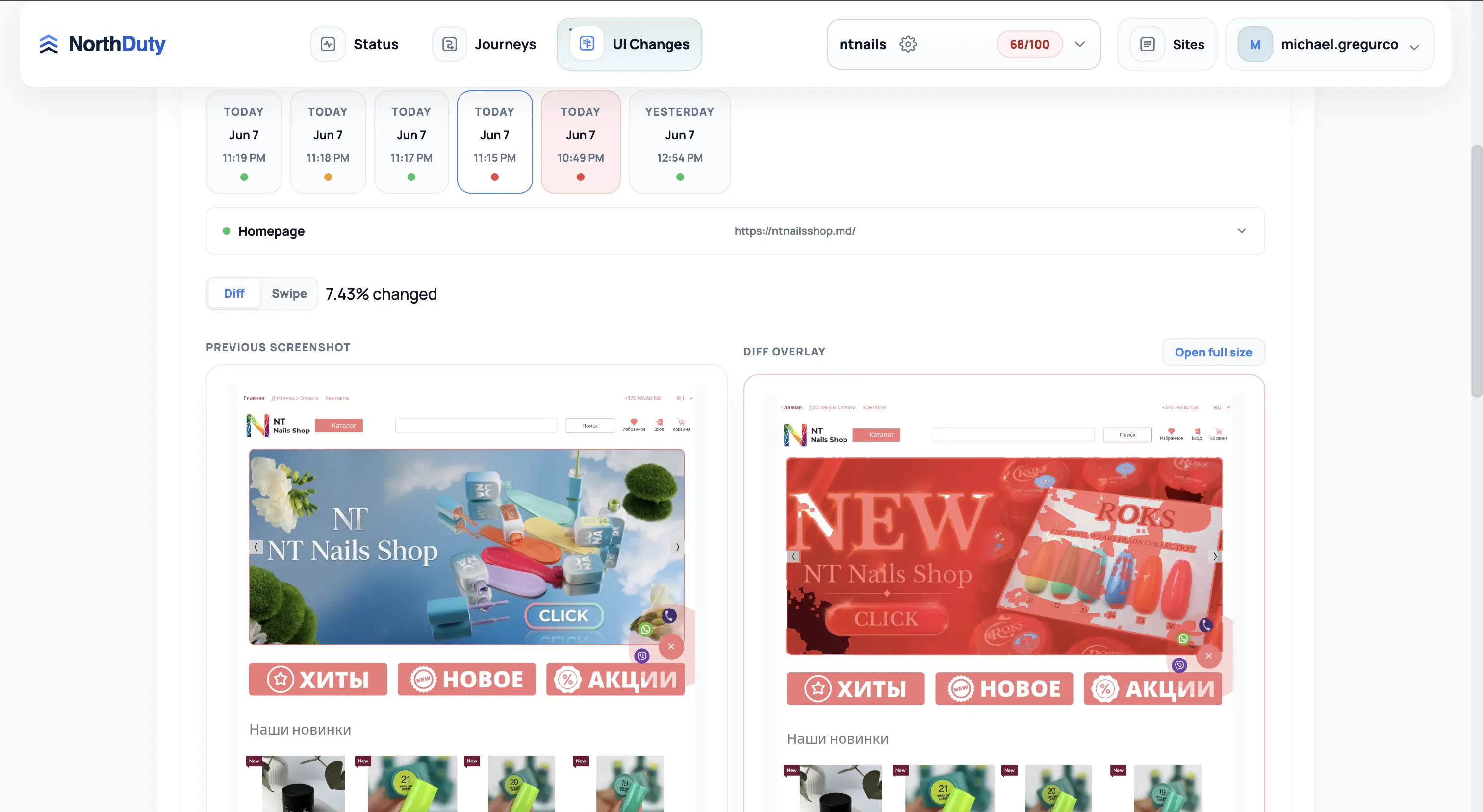
A screenshot is only useful for monitoring if two captures of an unchanged page look the same. NorthDuty makes that possible by stabilizing each page before it captures: it removes around 200 known cookie and consent overlays, pauses media and carousels, eager-loads lazy images, and scrolls the page in passes to trigger deferred content.
Each capture runs in a fresh browser context for isolation, and challenge pages (such as Cloudflare interstitials) are detected and given time to clear. Successful captures are retained as the baseline for later comparisons, and managed URL screenshot sets let you capture more than just the base URL.
Screenshots are the evidence layer behind visual change detection and regression review.
Capture, store, compare — automatically.
The base URL and any managed URLs are captured on the project's schedule.
Each page is stabilized in a fresh browser context and captured full-page with a real Chromium browser.
Successful captures are retained, and the latest completed set becomes the baseline for the next comparison.
The next capture is diffed against the baseline; a visual-difference alert rule can notify you when the change is large enough to matter.
Explore pricing, feature details, solution pages, and related tools connected to this website monitoring use case.
Pricing
NorthDuty plans are sized by how many checkout, signup, and login journeys you monitor: Free (1 daily journey), $29 Starter, $79 Pro, $199 Business, $499 Enterprise. 7-day full trial, no card.
Compare pricing plansHub
Explore NorthDuty features: website health checks every 5 minutes, screenshot-based visual change detection, and AI-suggested user journey monitoring in one project.
Browse FeaturesHub
Explore NorthDuty solutions for ecommerce website monitoring, SaaS website monitoring, agency website monitoring, and startup website monitoring.
Browse SolutionsFeature
Screenshot-based visual regression testing and website change detection for key pages — get pixel diffs on design, content, and layout changes, no code required.
Explore Visual Regression MonitoringFeature
Monitor web pages for visual, content, and layout changes with scheduled screenshots and pixel-level diffs.
Explore Website Change DetectionFeature
Learn how NorthDuty combines health checks, screenshot diffs, and editable user journeys in one website monitoring project.
Explore Website MonitoringFeature
Send NorthDuty alerts to email, Slack, Teams, Discord, Google Chat, webhooks, Telegram, WhatsApp, and SMS.
Explore AlertingAnswers to common questions about this monitoring feature and when teams should use it.
It is the scheduled capture and comparison of full-page screenshots of your important pages. NorthDuty captures each page on a cadence, stores the captures, and diffs each new one against the previous baseline.
Before each capture it stabilizes the page: removing cookie and consent overlays, pausing media and carousels, eager-loading lazy images, and scrolling to trigger deferred content. This makes repeat captures of an unchanged page match.
NorthDuty detects challenge and interstitial pages and waits a short time for managed challenges to clear before capturing. If a challenge cannot be cleared, the job reports a failure that includes the egress IP so it can be allowlisted.
Daily by default, configurable per project.
Start capturing stabilized, comparable screenshots of your key pages and let NorthDuty surface changes automatically.
7 days with every feature unlocked, no credit card required — then keep monitoring on the free forever plan.